Appearance
Account & Settings
Manage your profile, preferences, notifications, and account settings.
Profile
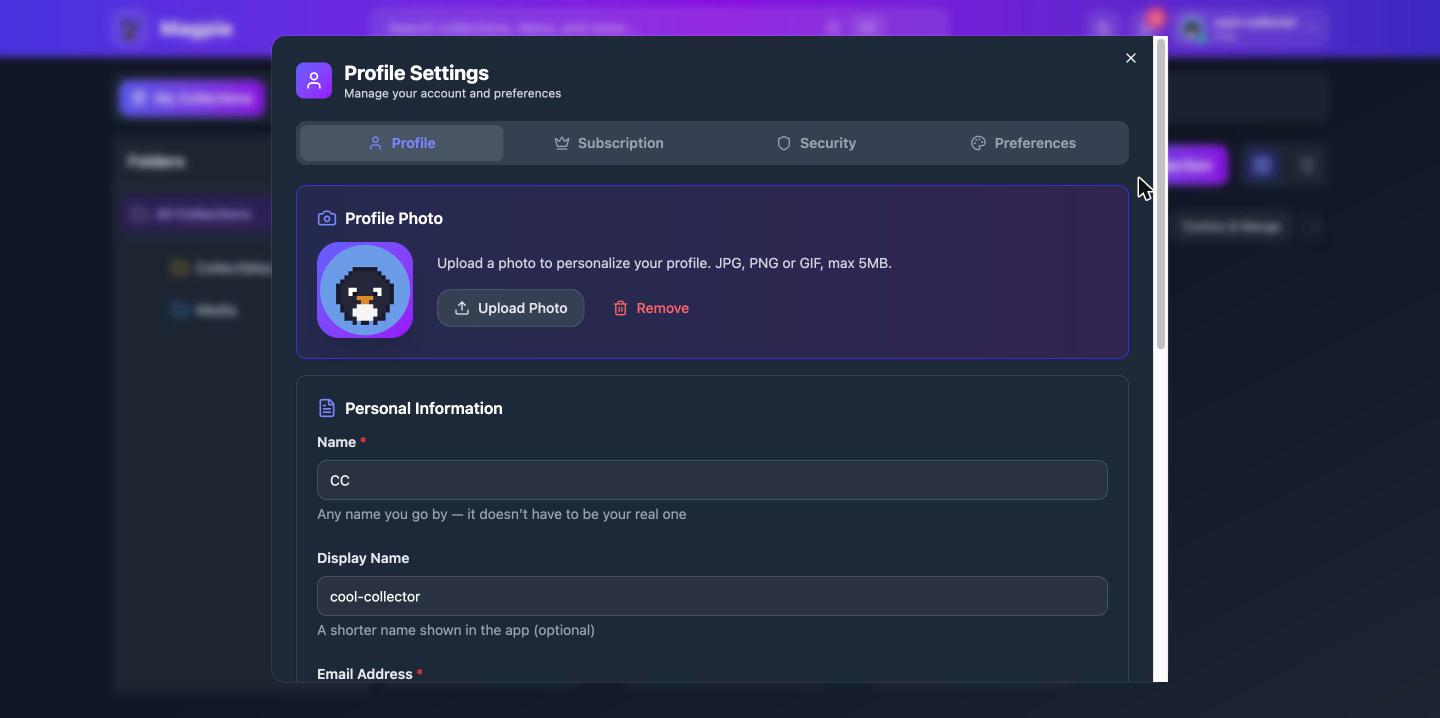
Your profile is what other users see when they view your public collections or interact with you on the marketplace. See Public Profiles & Community for what your profile page shows to other collectors.
Editing Your Profile
- Click your avatar (or initials) in the top-right corner
- Select Profile
- Update your details:
- Display Name — The name shown to other users
- Bio — A short description about you and your collections
- Avatar — Upload a profile photo (max 5 MB, JPEG/PNG/WebP/GIF)
- Click Save
Removing Your Avatar
- Go to your Profile settings
- Click Remove next to your current avatar
- Your profile will show your initials instead
User Preferences
Preferences let you customize how Magpie looks and behaves. Access them from Profile > Preferences.
Display & Layout
- Default collection view — Choose grid or list view for your collections
- Default item view — Choose grid or list view for items within collections
- Items per page — Set how many items to show per page
- Compact mode — Show more items with less spacing
- Image quality — Balance between image quality and loading speed
Collection Defaults
- Default visibility — Choose whether new collections are public or private by default
- Default currency — Set your preferred currency (35+ options) for new items
- Default sort order — Choose how items are sorted by default
Notification Settings
- Digest mode — Receive notifications immediately, or bundled in a daily or weekly digest
- Quiet hours — Set a time window when notifications are paused (e.g., 10 PM to 8 AM)
Privacy
- Follow requests — Choose between open follows (anyone can follow you) or approval-required follows. See Public Profiles & Community for more on following.
Accessibility
- Font size — Adjust the text size across the app
- Reduce motion — Minimize animations for comfort or accessibility
- High contrast — Increase contrast for better readability
Linked Accounts
You can connect social accounts to your Magpie profile for easier sign-in. Linked accounts also let you log in with multiple providers.
Viewing Linked Accounts
- Go to your Profile settings
- Click the Security tab
- Under Linked Accounts, you'll see which providers are connected — Google, Apple, and Discord
Each connected account shows the email address associated with that provider.
Linking a New Account
- Go to Profile > Security > Linked Accounts
- Click Link next to the provider you want to connect
- You'll be redirected to that provider's sign-in page
- After authorizing, you'll be returned to Magpie with the account linked
Unlinking an Account
- Go to Profile > Security > Linked Accounts
- Click Unlink next to the provider you want to disconnect
- Confirm the action
Note: You cannot unlink your last login method. If a social account is your only way to sign in (no password set), you'll need to set a password first or link another provider before unlinking.
Changing Your Password
- Go to your Profile settings
- Open the Security tab
- Under Change Password, enter your current password and your new password
- Click Update
Two-Factor Authentication
Two-factor authentication (2FA) adds an extra layer of security to your account. Once enabled, signing in requires both your password and a 6-digit code from an authenticator app on your phone — so even if someone learns your password, they can't get into your account.
You'll need an authenticator app such as Google Authenticator, Authy, or 1Password.
Enabling Two-Factor Authentication
- Go to your Profile settings
- Click the Security tab
- Under Two-Factor Authentication, click Enable Two-Factor Authentication
- Scan the QR code with your authenticator app (or type in the manual entry key shown below it)
- Enter the 6-digit code your app displays and click Verify & Enable
Saving Your Backup Codes
After enabling 2FA, Magpie shows you 10 backup codes. Save them somewhere safe — a password manager or a printed copy works well. You can click Copy All Codes to copy them to your clipboard.
- Each backup code can only be used once
- You will not be able to view these codes again after clicking Done
- Backup codes let you sign in if you lose access to your authenticator app
Signing In with Two-Factor Authentication
- Enter your email and password as usual
- When prompted, enter the 6-digit code from your authenticator app
- Click to verify, and you're in
Lost your phone? Click Use a backup code on the verification screen and enter one of your saved backup codes instead. Remember that each backup code only works once.
Regenerating Backup Codes
If you're running low on backup codes (or think they may have been seen by someone else):
- Go to Profile > Security > Two-Factor Authentication
- Enter your current password
- Click Regenerate Backup Codes
- Save the new set of codes
Your old backup codes stop working immediately — only the new set is valid.
Disabling Two-Factor Authentication
- Go to Profile > Security > Two-Factor Authentication
- Enter your current password
- Click Disable
Your account will go back to requiring only your password to sign in. You can re-enable 2FA at any time.
Two-factor authentication works on both the web and the mobile app — you can enable it, sign in with it, and manage it from either.
Notification Preferences
Magpie can notify you about activity on your collections through multiple channels:
- In-app notifications — Appear in the notification bell in the header
- Email notifications — Sent to your registered email address
- Push notifications — Sent to your mobile device (if using the Magpie mobile app)
What You'll Be Notified About
- Someone shares a collection with you
- A new item is added to a shared collection
- Someone comments on one of your items
- A share invitation is accepted
- Collection updates on collections you follow
Customizing Notifications
- Go to Profile > Preferences > Notification Settings
- Toggle email and push notifications on or off
- Set your preferred digest frequency (immediate, daily, or weekly)
- Configure quiet hours if you want a notification-free window
Dark Mode
Magpie supports light and dark color schemes:
- Click your avatar in the top-right corner
- Select your preferred theme: Light, Dark, or System (follows your device setting)
On the mobile app, you can also change this from Settings > Appearance.
Language
Magpie is available in multiple languages. The app uses your browser's language setting by default.
Deleting Your Account
If you'd like to permanently delete your account and all associated data:
- Go to your Profile settings
- Open the Security tab and scroll to the Danger Zone section
- Click Delete My Account
- Type
DELETEto confirm, then confirm the deletion
This action is permanent and cannot be undone. Deleting your account removes:
- All your collections and items
- All uploaded images and files
- Your profile information
- Any active subscriptions
- Your shares and marketplace listings