Appearance
Importing & Exporting Data
Magpie makes it easy to bring your data in from spreadsheets and get it out in useful formats.
Importing from CSV or Excel
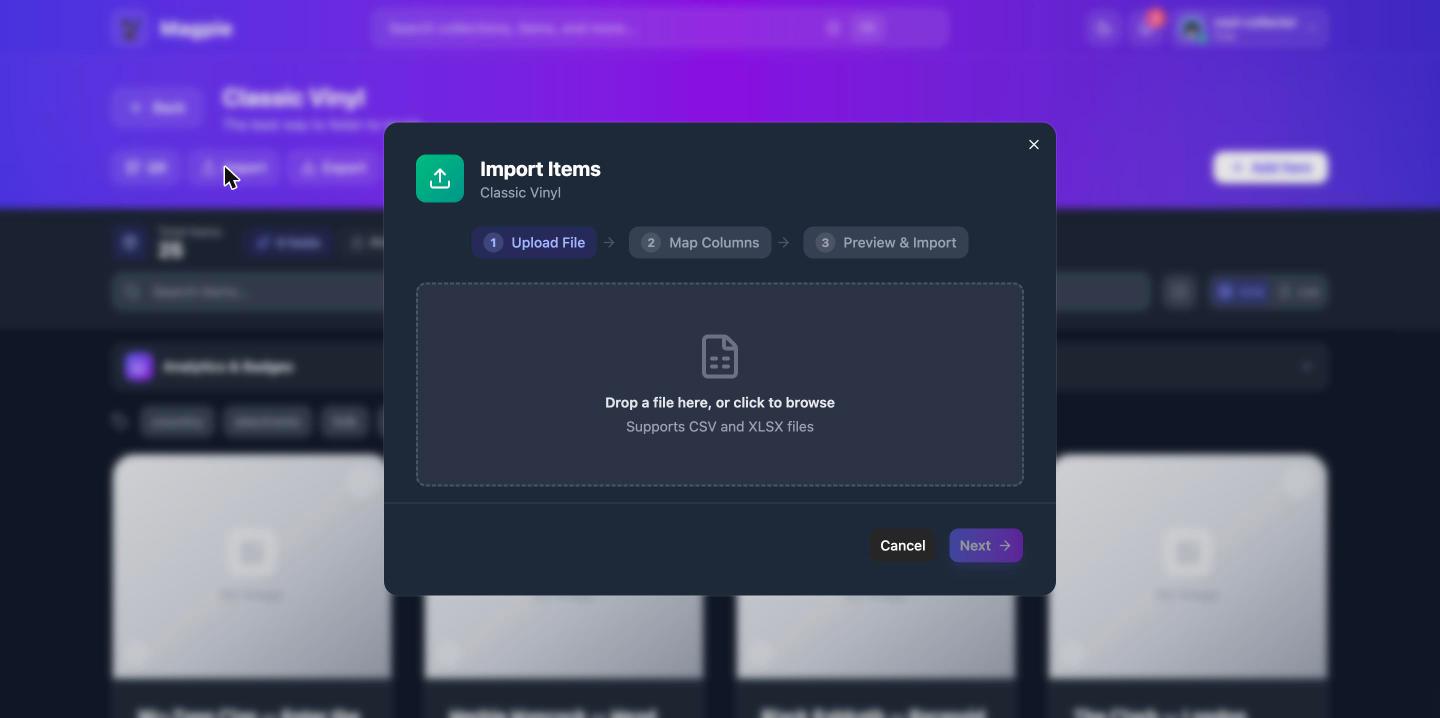
You can bulk-import items into a collection from a CSV or Excel file. This is the fastest way to add many items at once.
Supported File Formats
- CSV (
.csv) — Comma-separated values - Excel (
.xlsx) — Microsoft Excel spreadsheets (legacy.xlsfiles from Excel 97–2003 aren't supported — re-save them as.xlsxfirst)
How to Import
- Open the collection you want to import into
- Click the Import button in the collection header
- Follow the 3-step wizard:
Step 1: Upload Your File
- Drag and drop a file onto the upload area, or click to browse and select a file
- Magpie will read the file and detect your columns
Step 2: Map Columns
- Magpie automatically matches your column headers to item fields (e.g., a column called "Name" maps to the item name)
- Review the auto-detected mappings and adjust any that need correction using the dropdown menus
- At minimum, the Name column must be mapped — items without a name are skipped
- If your collection uses a template, template-specific fields (e.g., "Artist", "Condition") are also available as mapping targets
Step 3: Preview & Import
- Review the first 5 rows to verify everything looks correct
- The total item count and any validation warnings are shown
- Click Import to begin
- A progress indicator shows the import status
- When complete, you'll see a summary with the number of items imported and any rows that were skipped (with reasons)
Tips for Importing
- Maximum batch size: 500 items per import
- Round-trip compatible: Files exported from Magpie's CSV export can be re-imported without changes
- Tags: Separate multiple tags with a semicolon and space (
"; ") or comma (",") - Dates: Common formats are supported — ISO (2024-01-15), US (01/15/2024), and others
- Currency values: Currency symbols (e.g., "$", "EUR") are automatically stripped from numeric fields
- Free tier: If your collection is near the free-tier item limit, Magpie imports as many items as will fit
Exporting to CSV
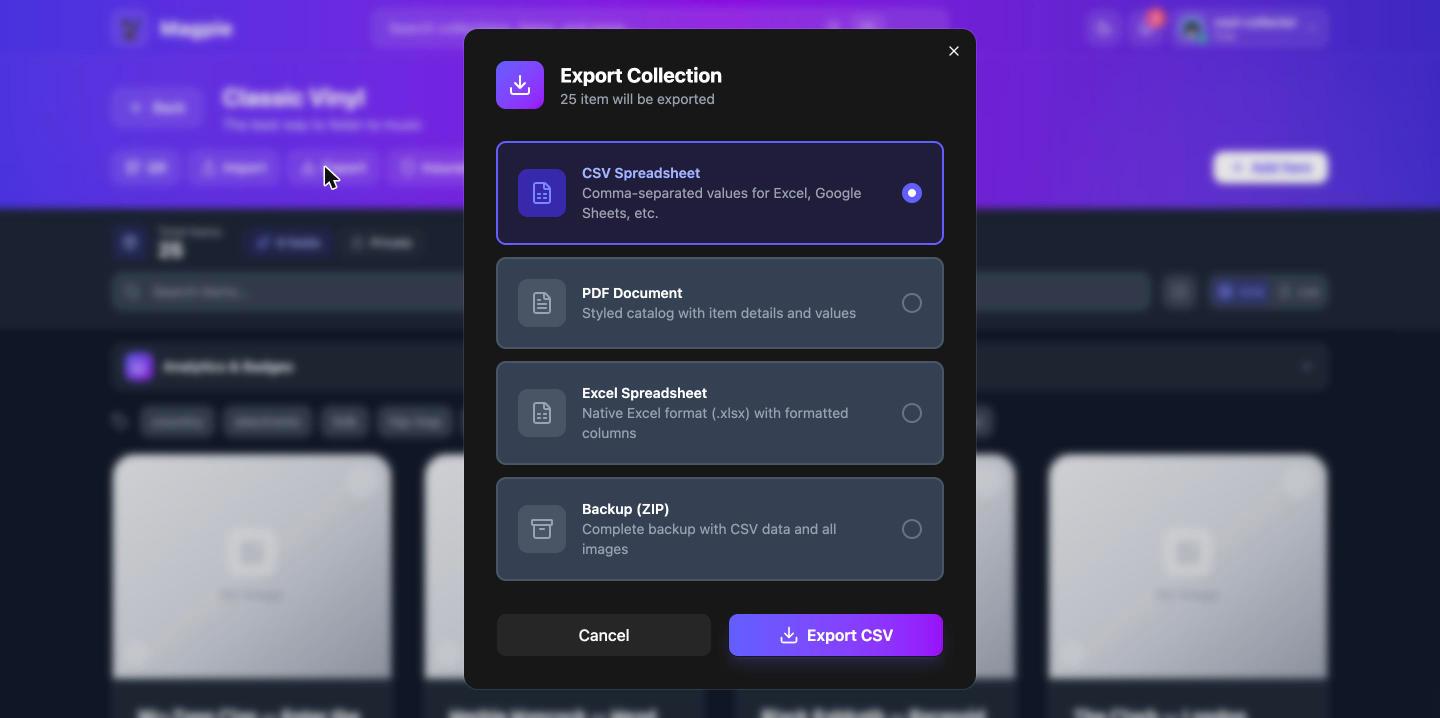
Export your collection data to a CSV spreadsheet file.
- Open the collection you want to export
- Click the Export button in the collection header
- Choose CSV
- The file downloads automatically
The CSV includes all item fields — name, description, tags, values, custom/template fields, and image URLs for each item (semicolon-separated if an item has multiple photos).
You can also export selected items only by entering Select mode, checking the items you want, and choosing Export from the bulk actions toolbar.
Exporting to Excel (XLSX)
Export your collection to a Microsoft Excel file.
- Open the collection
- Click the Export button
- Choose XLSX
- The file downloads automatically
The Excel export includes the same fields as CSV, including image URLs.
Exporting to PDF Catalog
Create a styled PDF catalog of your collection with embedded photos.
- Open the collection
- Click the Export button
- Choose PDF
- The file downloads automatically (images are loaded first, so larger collections may take a moment)
The PDF includes:
- Collection name, description, and export date
- Total collection value summary
- Each item with name, description, values, tags, and custom fields
- Up to 4 photos per item displayed as thumbnails
Backing Up Your Data (ZIP)
A Magpie backup is a self-contained ZIP with your data and every image — it works offline forever and can be restored into any Magpie account.
Backing Up One Collection
- Click your avatar > Profile, then open Backup & Restore
- Choose Export Backup and pick a collection
- The ZIP downloads straight to your computer — nothing is stored on Magpie's servers
Collections up to 500 MB of images can be backed up this way. If a collection is over the limit, Magpie offers to build the backup on the server instead (see below).
Backing Up Your Whole Account
For everything at once — or a single collection too big for a direct download — use a server backup:
- In Backup & Restore, choose Full Account Backup
- Click Request Full Account Backup
- Magpie builds the archive in the background — you'll get a notification and an email when it's ready (usually within minutes; very large accounts can take longer)
- Download it from the same screen. The download link stays available for 7 days, then the archive is deleted automatically
On the mobile app, request an account backup under Settings > Backup & Restore > Full Account Backup — the download link arrives by email.
An account backup contains a folder per collection, each with its data (backup.json) and an images/ folder with the actual photos.
Restoring a Backup
- In Backup & Restore, choose Import Backup and select your ZIP
- Review the preview, then click Restore
Restoring always creates new collections — your existing data is never modified. Both single-collection and full-account backups can be restored; a full-account backup restores every collection it contains.
Insurance Valuation Reports
Magpie can generate professional insurance valuation reports that document your collection values, item photos, and provenance details — perfect for insurance documentation.
For full details, see Insurance Valuation Reports.