Appearance
Getting Started with Magpie
Magpie is a collections management app that helps you organize, catalog, and share anything you collect. This guide walks you through creating your account and setting up your first collection.
Creating Your Account
- Go to magpie.services and click Get Started Free
- On the Create your account form, enter your email address and choose a password
- You can also sign up with Google, Apple, or Discord
- After signing up, you'll land on your dashboard
Your Dashboard
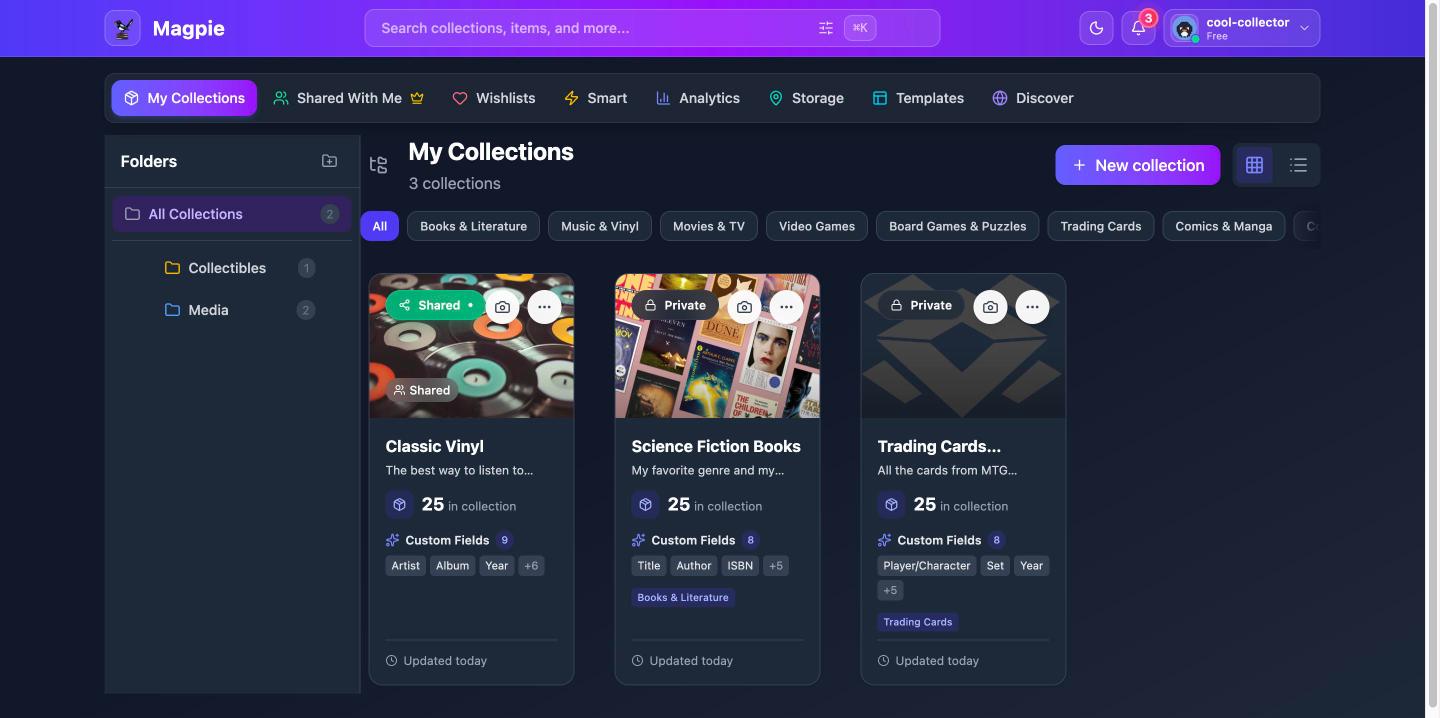
The dashboard is your home base. Along the top, you'll see tabs for different views:
- My Collections — All the collections you've created
- Shared With Me — Collections that other users have shared with you
- Wishlists — Your wishlist collections for items you want to acquire
- Smart — Rule-based collections that automatically find matching items
- Storage — Physical storage locations for tracking where items are kept
- Templates — Your custom field templates and the community template library
- Analytics — Charts and stats about your entire portfolio
- Discover — Public collections from other collectors
You can switch between grid view and list view using the toggle in the top-right corner.
Creating Your First Collection
- Click the Create New Collection card on your dashboard
- Enter a name for your collection (e.g., "My Vinyl Records")
- Add an optional description
- Choose a Collection Type if a template matches your collection — templates come with pre-configured fields for common collection types like books, vinyl records, trading cards, and more (see Collections for the full list)
- Click Create
Your new collection appears on the dashboard and you're ready to start adding items. To give it a cover image, hover over the collection card and click the camera button (Upload cover image).
Adding Your First Item
- Inside your collection, click Add Item
- Enter a name for the item
- Add an optional description
- Upload photos by clicking the image area or dragging and dropping files
- Add tags to help you organize and search (e.g., "rare", "first edition")
- Fill in any value fields — purchase price, current value, purchase date
- If your collection uses a template, fill in the template-specific fields (e.g., artist, genre, condition for vinyl records)
- Click Create Item
Repeat for each item in your collection. You can also import items in bulk from a CSV or Excel file.
Next Steps
Now that you have a collection with items, here are some things to try:
- Organize with folders — Group related collections into folders
- Share a collection — Invite someone to view or help manage a collection
- Search your items — Use global search to find items across all your collections
- Auto-fill item details — Search Discogs, Open Library, or Scryfall to save time when adding items
- Import from a spreadsheet — Bulk-import items from CSV or Excel files
- View your analytics — See portfolio value trends and top items on the Analytics tab
- Customize your preferences — Set your default currency, view mode, and more