Appearance
Market Value Tracking
Magpie can look up current market prices for your items from multiple sources, helping you track their value over time. Whether you collect vinyl records, trading cards, or anything else, price estimates give you a clear picture of what your items are worth today and how that value has changed.
Supported Price Sources
| Source | Available For | What You Get |
|---|---|---|
| eBay | All collection types | Average, median, min/max prices from completed eBay listings |
| Discogs | Vinyl Records collections | Marketplace pricing from the world's largest music database |
| Scryfall | Trading Cards collections | TCGPlayer pricing data for Magic: The Gathering and other trading card games |
Which sources are available depends on your collection template. Every collection can use eBay, while Discogs and Scryfall appear only for their respective collection types.
Looking Up Prices
- Open an item in your collection
- Click Price Estimate (on mobile, tap Price Estimates) to open the Market Price Estimates view
- If multiple sources are available, select a source tab (e.g., eBay, Discogs, or Scryfall)
- Enter a search query -- your item name is pre-filled, but you can refine it
- Click Search
- Review the results showing the average price, price range, and number of listings found
Price History & Trends
Each time you fetch a price, Magpie saves the result to build a history for that item. Over time, this gives you a clear view of how your item's market value is changing.
- The Price Trend chart shows how prices have moved over time
- Choose a time range to focus on: 30D, 90D, or 1Y
- A trend indicator shows whether the price is going up, down, or staying stable, along with a percentage change
- Fetch prices periodically to build a more complete and accurate history
Comparing Sources
When multiple price sources are available for your item, you can compare them side by side.
- The All Sources section displays each source's latest price and trend together
- This helps you understand the fair market value across different marketplaces
- Differences between sources are normal -- each marketplace has its own buyer and seller community
Updating Your Item's Value
By default, price estimates don't change your item's value — you stay in control (see Automatic Valuation below if you'd rather Magpie keep values current for you). When an estimate looks right, click Use as Value:
- On the web, the button appears on the market price card (it applies the average price) and next to each estimate in your history. It fills in the item's value field for you — review it and save the item to keep it.
- On mobile, tap Use as Value on any estimate card and the item's current value updates right away.
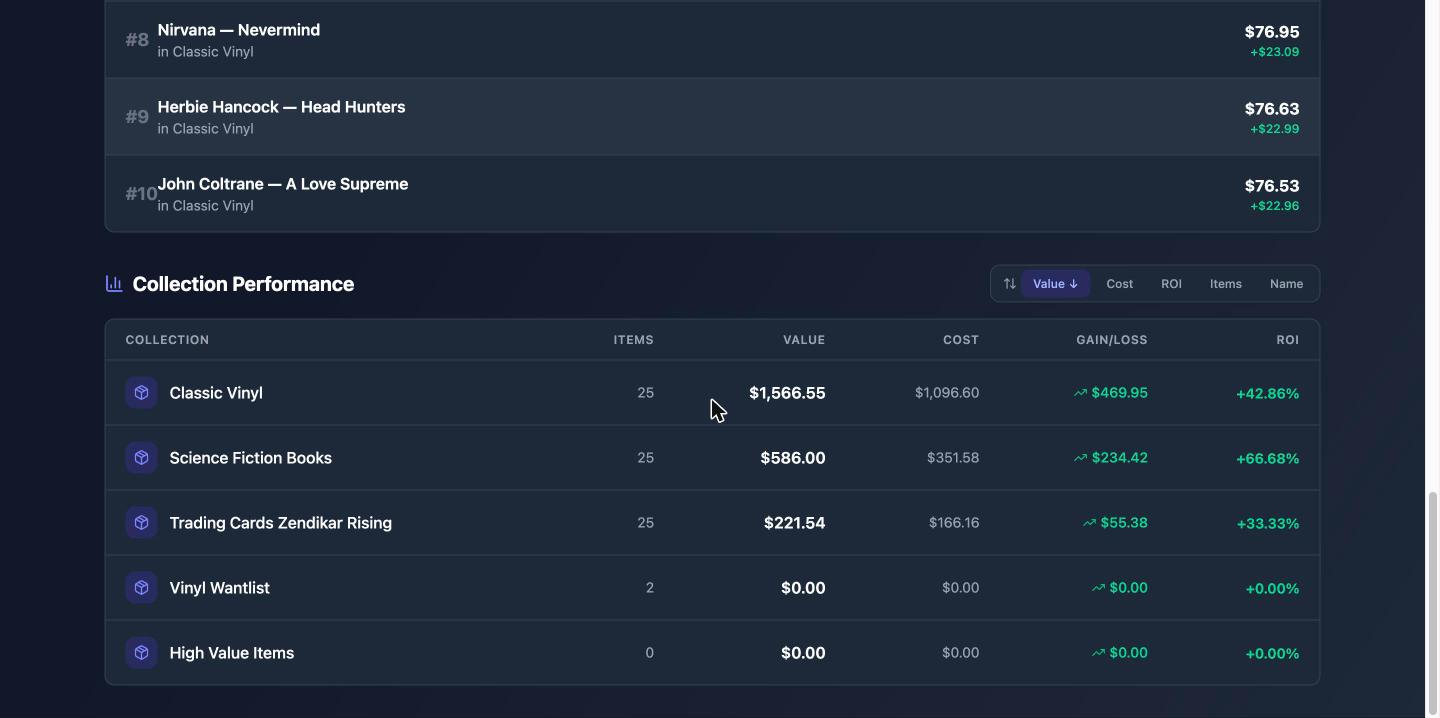
You can always type an exact amount in the item's value field instead — for example, if you'd rather use the median, or a conservative number for insurance purposes. Either way, your collection totals and portfolio analytics update from the new value.
Automatic Valuation
Rather than updating values by hand, you can let Magpie do it nightly: open a collection's Settings and switch on Automatic Market Valuation. Each night, Magpie refreshes market estimates for that collection's items and updates their values when the market has moved. Every change lands in the item's value history, and big moves (10%+) send you a portfolio alert notification. Large collections update a batch each night, so it may take a few nights to cover everything the first time.
Items priced in another currency are converted using daily exchange rates, and your Analytics totals are always shown in your default currency (set under Preferences > Collection Defaults).
Manual Estimates
If you have your own appraisal or want to record a price from a source Magpie doesn't track, you can add it manually.
- Scroll down to the Manual Estimates section
- Click Add Manual
- Enter your price information
- Manual estimates appear alongside market data in your price history
Mobile App
On the Magpie mobile app:
- Price trend badges appear on the item detail screen, showing the latest price and trend for each available source
- Tap a badge to open the full price estimate view
- The Price Estimates button gives you access to the full search and comparison features, just like on the web
Tips
- Fetch prices regularly to build accurate trend data -- monthly or after major market events works well
- Use specific search terms for better results. Include details like edition, condition, or year
- Compare multiple sources when available to get a well-rounded value assessment
- Vinyl records: Including the catalog number in your search can improve result accuracy
- Trading cards: Including the set name helps find the exact printing you own
- eBay results reflect completed (sold) listings, so they represent actual market prices rather than asking prices
Related Guides
- External Lookups -- Auto-fill item fields from Discogs, Open Library, and Scryfall
- Items -- Managing items, value tracking, and custom fields
- Collections -- Collection types and templates
- Insurance Reports -- Generate professional valuation reports for insurance purposes