Appearance
Sharing Collections
Magpie makes it easy to share collections with friends, family, or fellow collectors. You can invite collaborators to view or edit, and you can also make collections publicly accessible with a shareable link.
Sharing With Specific Users
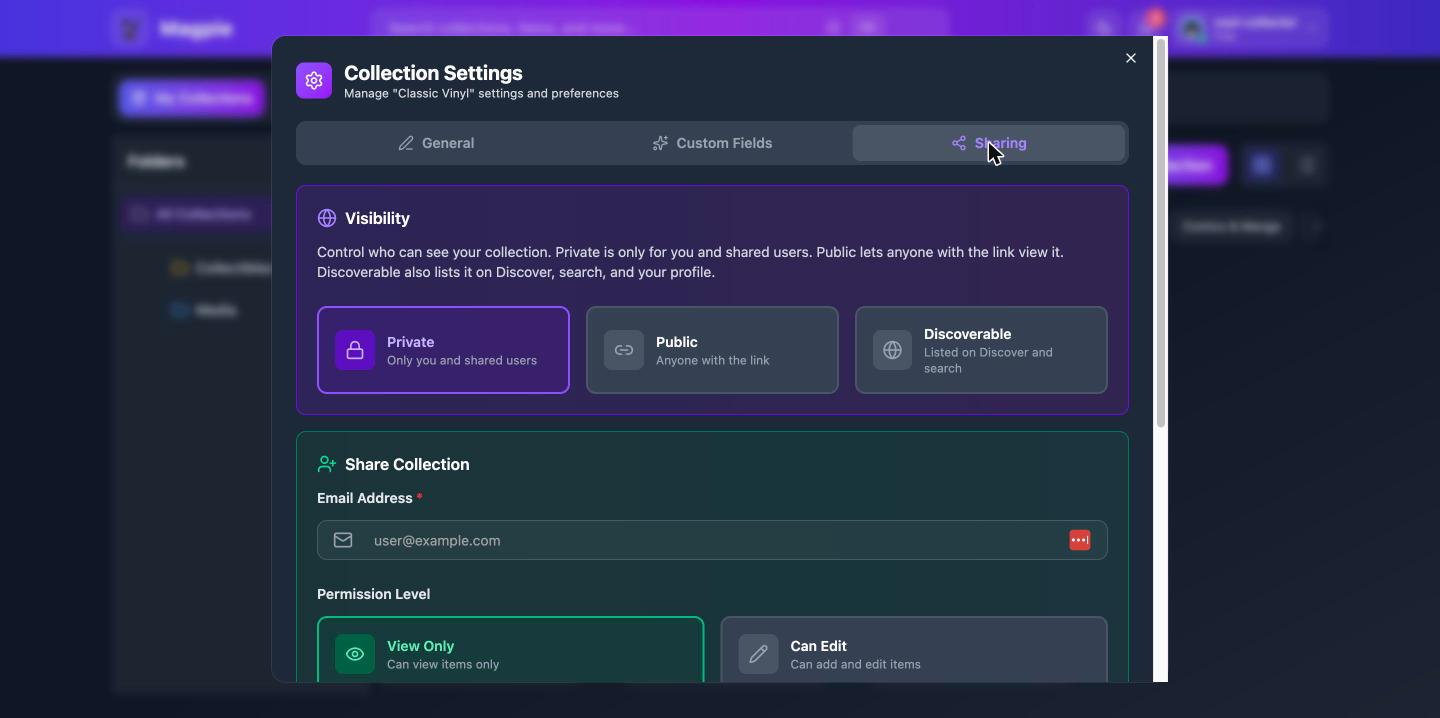
Inviting Someone
- On your dashboard, click the ⋯ (More options) button on the collection's card
- Select Collection Settings, then open the Sharing tab
- Enter the email address of the person you want to share with
- Choose a permission level:
- View Only — They can view the collection and its items but cannot make changes
- Can Edit — They can view, add, edit, and delete items in the collection
- Click Share
The share icon you may see on a collection card is a status badge showing the collection is shared or public — sharing itself is managed from the Sharing tab.
The recipient will receive an email notification and the collection will appear in their Shared With Me tab on the dashboard.
Sharing by Link
Don't know someone's email — or chatting somewhere like Discord? Use an invite link instead:
- Open the collection's Sharing tab and find Invite Links
- Pick the permission (View Only or Can Edit), optionally set an expiry, and click Create Link — it's copied to your clipboard automatically
- Paste the link anywhere; anyone who opens it sees what they're being invited to and can accept with one click (they'll be asked to log in or sign up first if needed)
You can create up to 10 active links per collection, see how many people joined through each, and revoke a link at any time — revoking stops new joins but doesn't remove access from people who already accepted (manage them in the Shared With list).
On the mobile app, invite links live in the same Share screen: tap Create Link to make one and send it straight from your phone's share sheet, and use Share or Revoke next to any existing link.
Managing Shared Users
- Click the ⋯ (More options) button on the collection's card and select Collection Settings
- Open the Sharing tab to see the list of users who have access
- From here you can:
- Change permissions — Switch a user between View Only and Can Edit access
- Remove access — Revoke a user's access to the collection
Accepting a Share
When someone shares a collection with you:
- You'll receive an email notification (if email notifications are enabled)
- You'll see an in-app notification in the notification bell
- The collection appears in your Shared With Me tab on the dashboard
Public Collections
You can make any collection publicly visible so anyone with the link can view it — no account required.
Making a Collection Public
- Click the ⋯ (More options) button on the collection's card
- Select Collection Settings
- Set Visibility to Public
- Save your changes
Sharing the Public Link
Public collections have a short, shareable URL in the format:
https://magpie.services/c/collection-name-abc123You can copy this link and share it anywhere — social media, forums, blogs, or with friends.
What Public Viewers Can See
Public viewers can:
- Browse all items in the collection
- View item photos and details
- See the collection description and cover image
Public viewers cannot:
- Edit, add, or delete items
- Access your other collections
- See your profile details beyond your display name
Shared With Me
The Shared With Me tab on your dashboard shows all collections that others have shared with you.
- Collections show the owner's name and your permission level — click the Shared by name (on the card or inside the collection) to visit their profile and follow them
- Collections someone has shared with you also appear on their profile page under Shared with You (only you can see that section)
- View Only collections display a lock icon — you can browse but not edit
- Can Edit collections let you add, edit, and delete items just like your own
Permissions Overview
Followers visibility: besides Private/Public/Discoverable, collections can be set to Followers — everyone who follows you can view (but not edit) the collection. Combined with Approval Required follow requests, this makes a collection visible to exactly the audience you've approved. Followers-tier collections appear on your profile in a "Followers Only" section that only your followers can see.
| Action | Owner | Can Edit | View Only | Public Viewer |
|---|---|---|---|---|
| View collection and items | Yes | Yes | Yes | Yes |
| Add items | Yes | Yes | No | No |
| Edit items | Yes | Yes | No | No |
| Delete items | Yes | Yes | No | No |
| Edit collection settings | Yes | No | No | No |
| Share with others | Yes | No | No | No |
| Delete collection | Yes | No | No | No |
Tips
- Collaborate on shared hobbies — Share a collection with Can Edit access so both of you can add items as you find them
- Show off your collection — Make it public and share the link in collecting communities
- Organize shared collections — Shared collections can be placed in your personal folders without affecting the owner's folder structure