Appearance
Templates
Templates define the fields that items in a collection use. Instead of setting up fields from scratch every time, you can pick a pre-built template or create your own. Templates save time and keep your collections consistent.
Pre-Built Templates
Magpie includes 22 ready-to-use templates covering common collection types. Each comes with fields tailored to that category — condition scales, standard grading systems, and relevant metadata.
General
| Template | Fields |
|---|---|
| Basic Collection | Name, description |
| Inventory | Name, SKU, quantity, pricing |
Entertainment
| Template | Fields |
|---|---|
| Book Collection | Title, author, ISBN, publisher, year, genre, condition, rating |
| Vinyl Records | Artist, album, year, genre, format (LP/EP/Single), condition (Goldmine scale), label, catalog number, value |
| Movie Collection | Title, director, year, genre, format (4K/Blu-ray/DVD/etc), rating, runtime |
| Video Games | Title, platform, year, genre, condition, complete in box, value |
| Board Games | Name, player count, play time, complexity, category, condition, complete |
Collectibles
| Template | Fields |
|---|---|
| Coin Collection | Country, denomination, year, mint mark, grade (Sheldon scale), metal, value |
| Stamp Collection | Country, year, denomination, condition (Mint/Hinged/Used), catalog number, value |
| Trading Cards | Player/character, set, year, card number, condition (10-point scale), graded, grade, value |
| Comic Books | Title, issue #, publisher, year, condition (CGC 0.5–10.0), graded, grade, value |
| Figurines | Name, series, brand, year, scale, condition, in box, value |
Art & Antiques
| Template | Fields |
|---|---|
| Art Collection | Title, artist, medium (oil/acrylic/watercolor/etc), year, dimensions, signed, provenance, value |
| Antiques | Name, category, era, origin, condition, provenance, value |
Fashion
| Template | Fields |
|---|---|
| Watch Collection | Brand, model, reference #, year, movement, case material, condition, box & papers, value |
| Sneaker Collection | Brand, model, colorway, size, year, condition (Deadstock/VNDS/Excellent/Good/Worn), has box, value |
| Handbag Collection | Brand, model, color, material, year, condition, authenticated, value |
Hobby
| Template | Fields |
|---|---|
| Wine Collection | Name, vintage, region, grape variety, type, rating (1–100), value |
| LEGO Sets | Set name, set #, theme, year, pieces, minifigs, complete, has instructions, has box, value |
| Model Kits | Name, brand, scale (1:12–1:700), category, built, condition |
| Plant Collection | Name, species, date acquired, location, last watered, notes |
Sports
| Template | Fields |
|---|---|
| Sports Memorabilia | Item, sport, team, player, year, signed, authenticated, value |
Using a Template
When Creating a Collection
- Click Create New Collection on your dashboard
- In the creation dialog, open the Collection Type dropdown — templates are grouped by category
- Pick the template that fits
- Finish filling in the collection name and click Create
Every item you add to that collection will have the template's fields available to fill in.
Browsing Templates
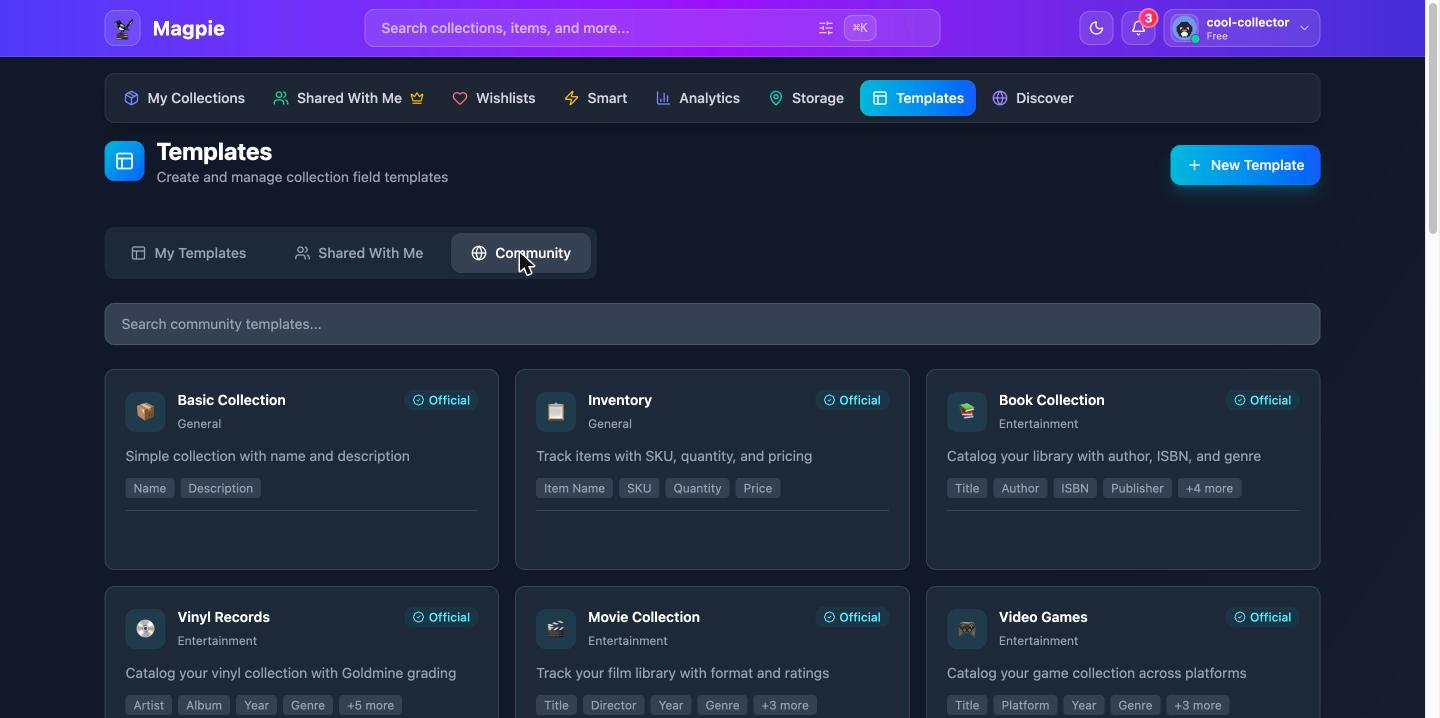
The Templates tab on your dashboard is the template library. It has tabs for different sources:
- My Templates — Templates you've created
- Shared With Me — Templates others have shared with you
- Community — Magpie's built-in templates (marked with an Official badge) plus public templates created by other users. Use the copy button on any of them to save an editable copy to My Templates.
Use the search box to find a template by name. The 22 pre-built templates appear in the Community tab with an Official badge, and are also available in the Collection Type dropdown when creating a collection.
Creating Custom Templates
If none of the pre-built templates fit your collection, create your own.
- Go to the Templates tab on your dashboard
- Click Create Template
- Enter a name and optional description
- Choose an icon and color
- Select a category (collectibles, entertainment, fashion, hobby, etc.)
- Add your fields:
- Give each field a label (e.g., "Condition", "Year", "Brand")
- Choose a type: Text, Long Text, Number, Currency, Dropdown, Date, Yes/No, URL, Email, Rating, or Color
- For dropdown fields, enter the options separated by commas
- Mark fields as required if every item should have them
- Click Create
You can add up to 30 fields per template and create up to 50 templates on your account.
Editing a Template
Hover over one of your templates in My Templates and click the pencil icon to change its name, description, icon, color, category, or fields. Changes don't affect collections that already used the template.
Sharing Templates
Sharing With Specific Users
- In My Templates, hover over your template and click the share icon (or open the template card)
- Enter the email address of the person you want to share with
- Click Share
The template appears in their Shared With Me tab in the template library.
Removing a Share
- Open the template
- In the share list, click Remove next to the user you want to unshare with
Note: Publishing your own templates to the Community tab isn't available yet — the Community tab currently features Magpie's official templates. For now, share templates directly by email.
Rating Templates
Help other users find great templates by rating templates shared with you:
- Open a template from the Shared With Me tab
- Click the star rating (1–5 stars)
Duplicating Templates
Found a template you like but want to customize it? Duplicate it to your library:
- Open a template from the Shared With Me or Community tab
- Click Duplicate
- A copy is added to My Templates where you can edit it freely
Tips
- Start with a pre-built or community template when one is close to what you need — it's faster than building from scratch
- Use dropdown fields for values with a fixed set of options (condition, category, format) — this keeps your data consistent and filterable
- Include a value/currency field if you want to track what your items are worth and see portfolio totals on the Analytics tab
- Templates are applied at the collection level — all items in a collection share the same fields