Appearance
Working with Items
Items are the individual pieces in your collections. Each item can have photos, tags, custom metadata, and value tracking.
Adding Items

- Open a collection
- Click Add Item
- Fill in the item details:
- Name (required) — The item's title
- Description — Optional notes or details about the item
- Photos — Upload up to 20 images (see below)
- Tags — Add tags for organization and searching
- Template fields — If your collection uses a template, fill in the relevant fields (e.g., artist, condition, year)
- Click Create Item
You can also auto-fill item details from external databases like Discogs, Open Library, or Scryfall — see Auto-Fill with External Databases.
Editing Items
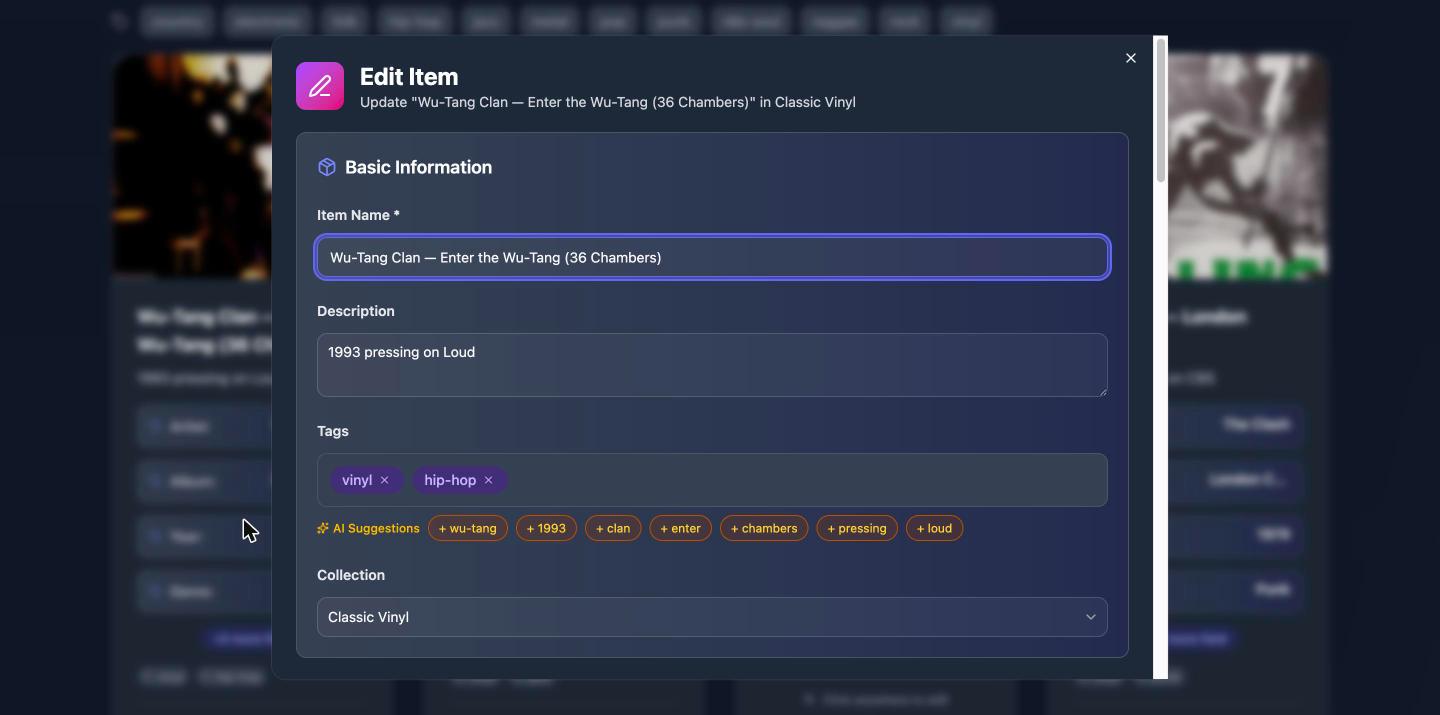
- Click on an item to open it
- Click Edit to open the edit dialog
- Make your changes
- Click Save
Uploading and Managing Photos
Each item can have up to 20 photos. Photos help you document your items and make your collections more visual.
Adding Photos
- Drag and drop image files onto the photo upload area
- Click the upload area to browse and select files from your device
- Supported formats: JPEG, PNG, and WebP
- Maximum file size: 10 MB per image
Editing Photos
Magpie includes a built-in image editor. After uploading a photo, you can:
- Crop — Select a portion of the image with aspect ratio presets (Free, 1:1, 4:3, 3:2, 16:9)
- Rotate — Rotate the image 90 degrees at a time
- Flip — Mirror the image horizontally or vertically
Reordering Photos
Drag and drop photos to rearrange their order. The first photo is used as the item's thumbnail throughout the app.
Using Tags
Tags help you organize and find items across your collections. Each item can have up to 50 tags.
Adding Tags
- Type a tag name in the tags field and press Enter
- Magpie will suggest existing tags as you type (autocomplete)
- Tags are shared across your collections, so using consistent tag names helps with searching
Filtering by Tag
- In a collection, click on any tag to filter and show only items with that tag
- You can also search for tags using global search
Tracking Values

Magpie helps you track the financial value of your items. Each item has these value-related fields:
- Purchase Price — What you paid for the item
- Current Value — The item's estimated current worth
- Currency — The currency for this item's values (35+ currencies supported)
- Purchase Date — When you acquired the item
- Acquisition Source — Where you got the item (e.g., "eBay", "Estate Sale", "Gift")
Value data feeds into your Analytics dashboard, where you can see portfolio trends, top items by value, and gain/loss calculations.
Reordering Items
You can drag and drop items to rearrange their order within a collection. Your custom order is saved automatically.
Bulk Operations
When you need to perform the same action on multiple items at once, use bulk operations:
- Click Select to enter selection mode
- Check the items you want to act on (or use Select All)
- Choose an action from the toolbar:
- Export — Export selected items to CSV or PDF
- Tag — Add tags to all selected items
- Move — Move items to a different collection
- Delete — Remove selected items
On the mobile app, bulk selection also offers Duplicate (copy items within the same collection) and Edit Fields (update a field value across all selected items). To find and remove accidental copies, see Duplicate Detection.
Deleting Items
Single Item
- Open the item
- Click Delete
- Confirm the deletion
Multiple Items
- Enter selection mode by clicking Select
- Check the items to delete
- Click Delete in the toolbar
- Confirm the deletion
Deleting items is permanent and cannot be undone.
Item Comments
You can add comments to individual items — useful for notes, provenance details, or discussions with collaborators who have access to the collection.
- Open an item
- Scroll to the Comments section
- Type your comment and click the send (paper plane) button
Comments are visible to anyone who has access to the collection.